DW logo
Link FiveLink SixLink Seven
Add to Chrome - FREE

All your LinkedIn searches, one side panel.

FeedPane saves your LinkedIn search URLs, keeps them organised, and lets you open multiple feeds at once, like TweetDeck, but for LinkedIn.

Add to Chrome - FREE

Chrome extension · No account needed · Your data stays on your device

FeedPane logo. Blue icon with 3 columns of colour, white text

LinkedIn search is powerful.
Managing it isn't.

You've spent time building the right search. Boolean strings, location filters, seniority levels, date ranges. It's good. You bookmark the tab, forget which one it was, and rebuild it next week.

FeedPane fixes that. Save any LinkedIn search with a name and tags. Come back to it in one click. Open ten at once if you need to.

search icon

Save any search, instantly

Paste a LinkedIn search URL, give it a name, add tags. It's there the next time you open the panel, no tabs, no bookmarks to dig through.

eye icon

Always at hand

FeedPane lives in Chrome's side panel. It stays open while you browse, so your saved searches are one click away without interrupting what you're doing.

smile icon

Know what you saved

FeedPane decodes your LinkedIn URLs into plain English — keywords, network filters, date range, seniority, job type. Understand exactly what a search does before you open it.

How it works

Up and running in under a minute

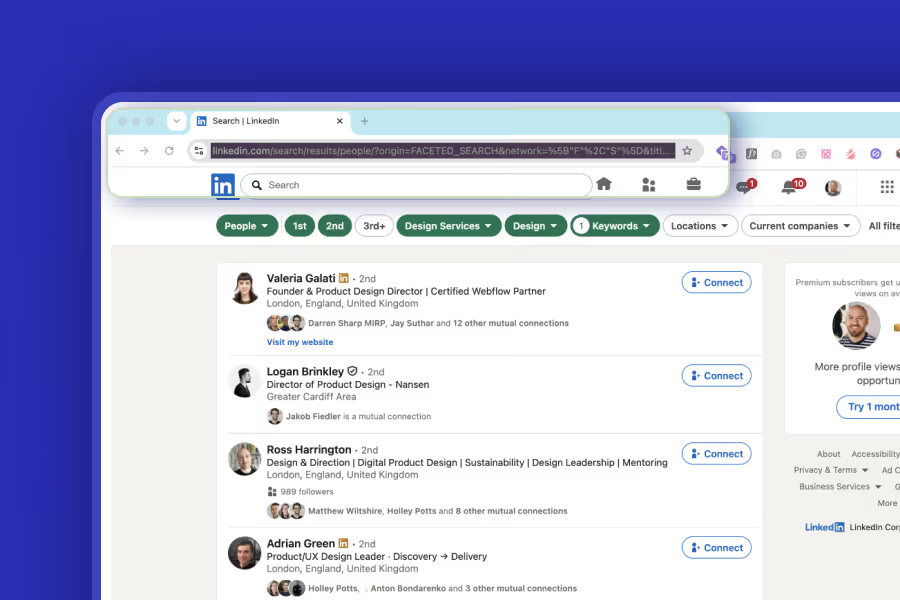
LinkedIn search results showing profiles of product design professionals with connect buttons.
01

Save a search

Open any LinkedIn search, paste the URL into FeedPane, give it a name. Add tags to group similar searches together.
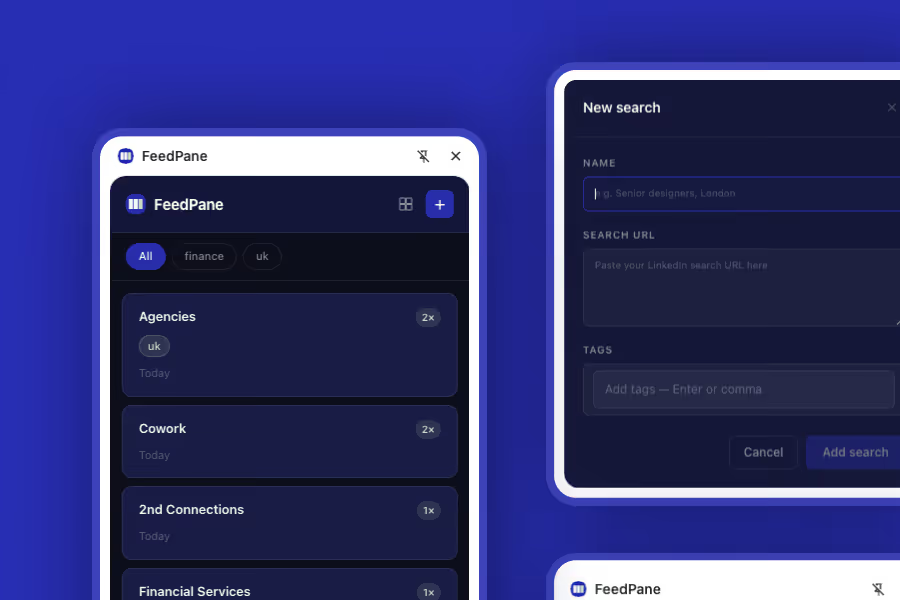
FeedPane app interface showing search filters, agency lists, and new search input fields on dark blue background.
02

Access your panel

Click the FeedPane icon in your Chrome toolbar. Your saved searches are listed, sorted by how often you use them.
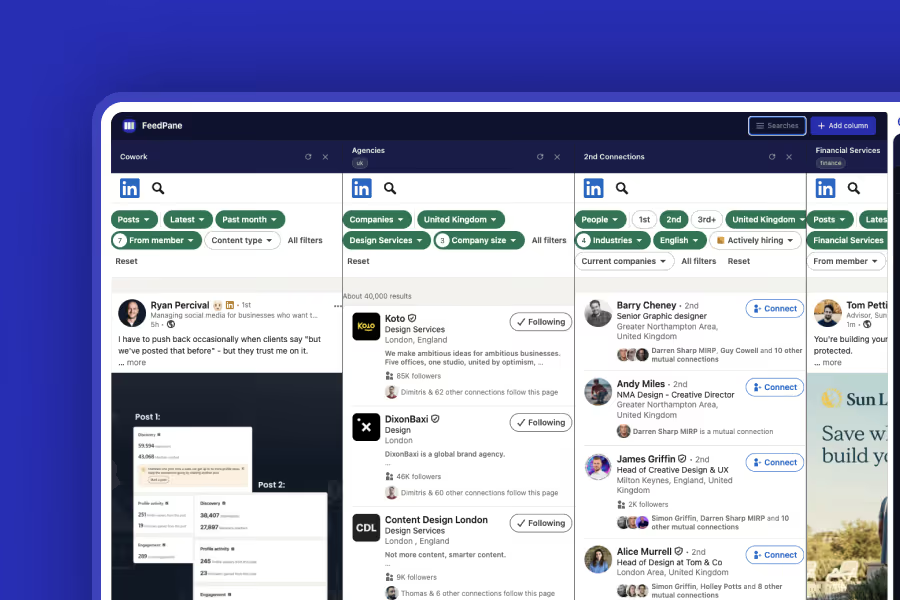
FeedPane app interface showing LinkedIn search results for agencies, 2nd connections, and financial services.
03

Open the deck

Launch the FeedPane Deck to see multiple LinkedIn feeds as live columns, scroll them all at once, side by side.

Access the LinkedIn search field and enter a search query or press enter. Select the content type to search for such as Posts, People, or Jobs. Open All filters and add relevant filters along with keywords, then display results. Copy the URL from the LinkedIn search results page. Open the FeedPane extension and click the add button to create a new search feed. Paste the copied LinkedIn search URL, assign a name and tags to the feed. Switch to Deck view to display search results in a grid layout. Populate the grid with multiple LinkedIn searches. Add additional search feeds to view them simultaneously side by side. Scroll through feeds, engage with content, and post comments across multiple LinkedIn searches in one interface.

Built by a product designer, not just designed by one.

FeedPane is a side project by me, Dave Warren, a product designer who builds the things he wishes existed.

Visit my main site
DW logo
Dave Warren Design is the trading name of Studio Warren Ltd, a company registered in England and Wales under company number 16341552.
FeedPane is an independent tool. Not affiliated with or endorsed by LinkedIn. Privacy Policy